Presenting "Learn From My Edits" (Beta)
News
Personalized AI Editing, Your Way
Impossible Things has always been about building AI tools that work with your process, not against it. With Learn From My Edits (Beta), we’re pushing that idea further than before.
This feature lets Impossible Things study how you edit and adapt to your personal style. Future edits feel more like yours, without any extra steps on your end.
Before getting started, we recommend updating the Impossible Things plug-in to version 1.92 or later. Versions 1.90 and 1.91 included known issues that could affect how learned settings were applied. Version 1.92 improves learning accuracy and introduces additional tuning tools discussed below.
What Is “Learn From My Edits (Beta)”?
Instead of applying the same look to every image, Learn From My Edits watches what you do. Whether you’re adjusting exposure, tweaking contrast, shifting white balance, or refining skin tones, the plug-in pays attention. It uses that information to inform future edits, getting closer to your style the more you use it.
It’s cloud-synced, fast, and doesn’t need hundreds of edits to start working.
How It Works
Here’s how you’ll use Learn from My Edits to personalize your AI photo editing:
1. Edit Your Images with Impossible Things
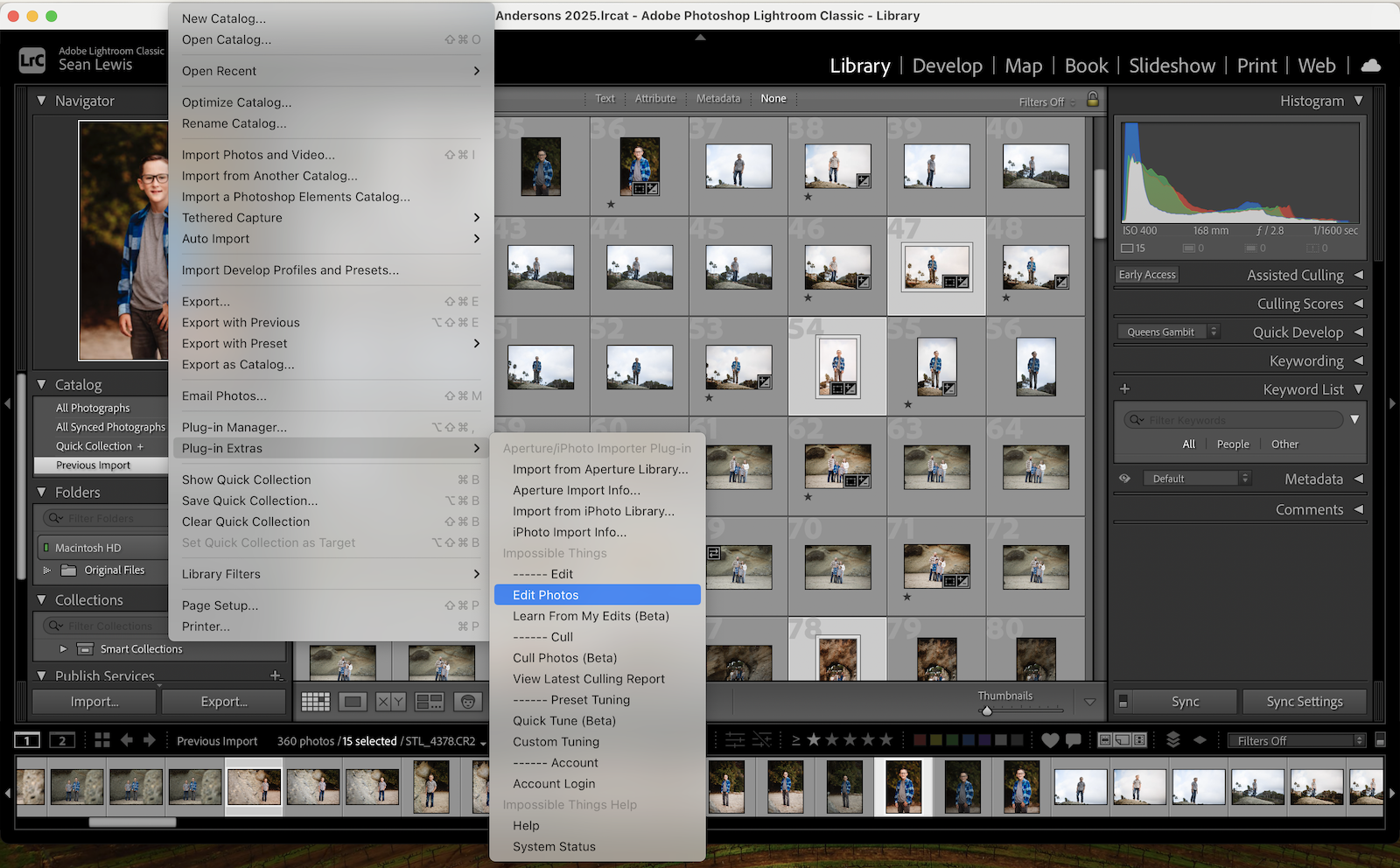
Select your images and run Edit Photos through the plug-in.
2. Manually Adjust as Needed
Finish your edits like you normally would. Make any tweaks or refinements.
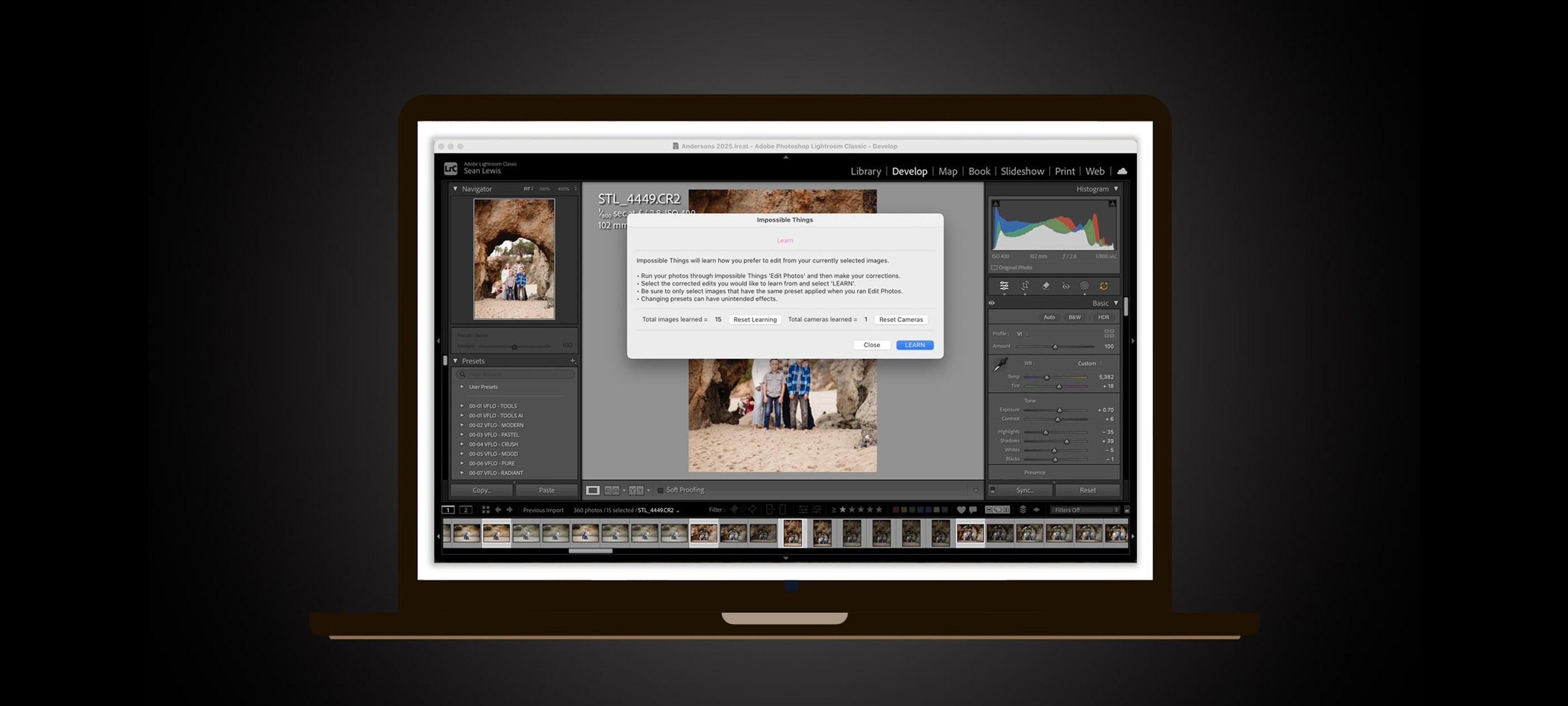
Please note: Before moving on, make sure the images you want the system to learn from are actively selected. Learn From My Edits only analyzes selected images, and only those originally edited using Impossible Things.
3. Run “Learn From My Edits (Beta)”
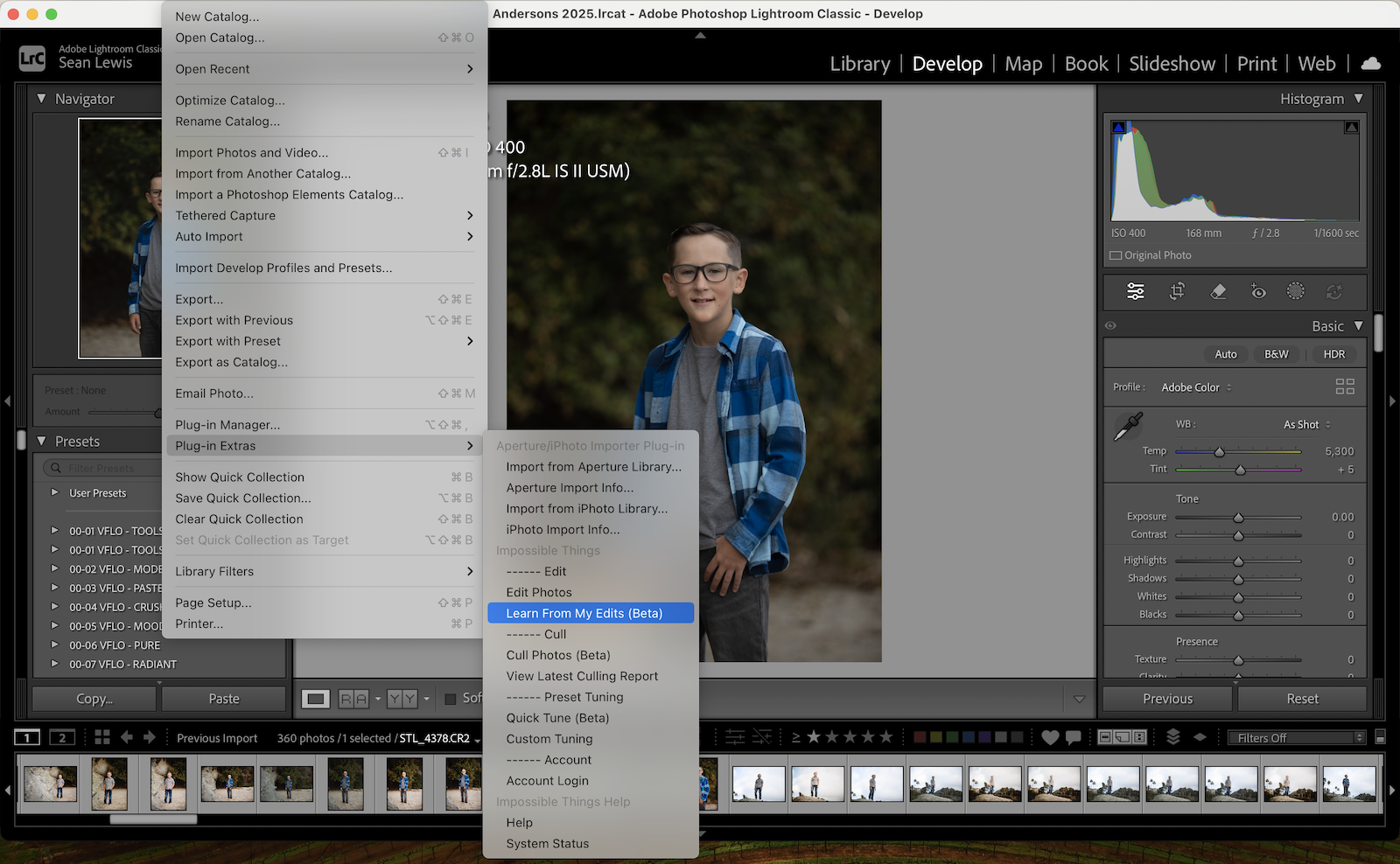
Go to: File > Plug-in Extras > Impossible Things > Learn From My Edits (Beta)
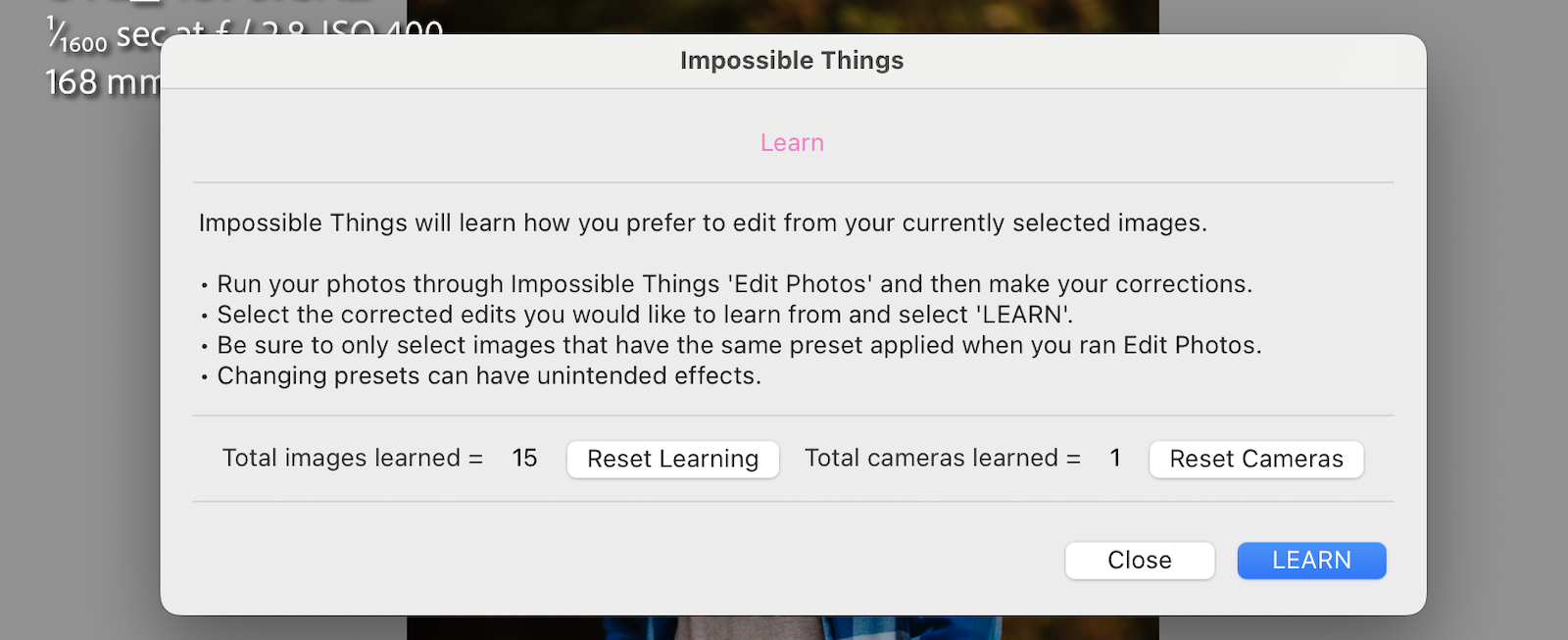
3. Click “Learn”
The system analyzes your adjustments and updates your personalized editing model. Your preferences get saved and synced to your Impossible Things account automatically.
From there, your edits aren’t just fast, they’re personalized.
Global Learning, Preset Flexibility
The learning model works globally, not on a per-preset basis. What does that mean?
Your personal style influences all future edits, no matter which preset you pick. If a preset starts behaving differently than you expect, you might need some preset-specific tuning.
To refine individual presets, use the Preset Tuning options in the plug-in:
- Custom Tuning – Manually adjust how the preset behaves
- Auto-Tune – Automatically adapt the preset based on your learned style
- Quick Tune (Beta) – Available in version 1.92+, this is the fastest and recommended option. Quick Tune lets you adapt a preset using a single image, making it ideal for fast, targeted adjustments without additional setup.
In short:
- Learn From My Edits improves your overall style
- Preset Tuning lets you dial in the details
Tips for Best Results
Learn From My Edits (Beta) is pretty forgiving, but a few simple practices will help you get better, more consistent results as the system learns.
Start Small
Begin with a modest batch of finished edits—10 to 20 images should do it. Once you’re happy with how things are working, you can expand to 30, 50, or more images. The system keeps improving as it learns from additional work.
Don’t Switch Presets After Editing
Always start with Impossible Things before making manual adjustments. If you switch presets after the plug-in has already edited an image, you’ll confuse the learning engine. It’s trying to understand how you refine its results, not how different presets compare.
Only Selected, Impossible Things–Edited Images Are Learned
The system only learns from images that meet two criteria: you selected them intentionally, and they were originally edited using Edit Photos in Impossible Things. Images edited entirely by hand or never processed by the plug-in get ignored automatically.
Only Learn from Finalized Images
Teach the system using images you’ve completely finished. Learning from in-progress edits or temporary adjustments can mess with the accuracy of your personalized model. Think of this as showing the system your “final work,” not rough drafts.
Images Cannot Be Learned Twice (Unless Re-edited)
Each image can only be learned once unless you reprocess it. Want Impossible Things to learn from the same photo again? Just run Edit Photos on it first. This prevents duplicate data and keeps the learning process clean.
Following these guidelines helps Impossible Things get a clearer read on your style. Edits start feeling more natural, more consistent, and more like how you actually work.
What Happens Next?
Once you’ve taught the system your style, here’s what changes:
- Your edits get automatically personalized in future sessions
- The model evolves and improves as you edit more
- Your preferences are stored securely in the cloud and work across machines
- The system adapts to different cameras and scenes, getting smarter over time
Final Thoughts
With Learn From My Edits (Beta), you’re not just speeding up your workflow—you’re making it smarter. The more you use Impossible Things, the more it acts like your editing assistant, picking up on your aesthetic and making choices that reflect your style.
It’s personalized AI editing, done the way it should be.
-
Posted On
01.19.26
-
Posted By
Things